
Loading page
Create Qwen Image 2.0 text to image visuals or use Qwen Image 2.0 image to image with up to 3 references.
Credits
Flat 6-credit pricing for both workflows
6
credits per image
Qwen Image 2.0 creator guide
Use Qwen Image 2.0 when these strengths match the brief before spending credits.
Use Qwen Image 2.0 text to image generation when you want a finished image from a written prompt.
Upload reference images and describe the visual change you want the Qwen Image 2.0 image to image workflow to generate.
Choose the output canvas shape directly from the generation panel.
Keep PNG as the default or switch to JPEG when a smaller, share-ready file is better.
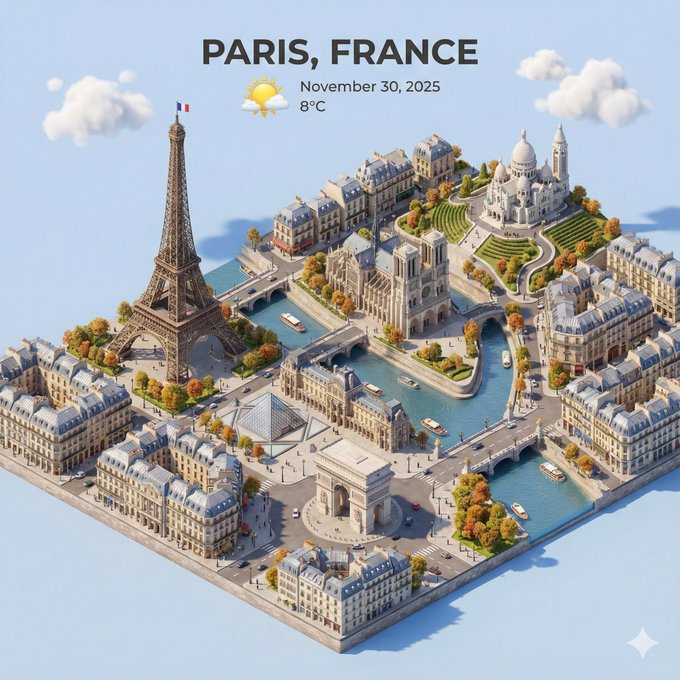
Use Qwen Image 2.0 when you need a practical image generator for prompt-first concepts, reference-guided edits, web assets, and credit-aware iteration.
Start from a written Qwen Image 2.0 prompt when you need campaign images, editorial covers, mock scenes, or visual directions before choosing final assets.
Use Qwen Image 2.0 image to image when you have up to 3 references and want the prompt to guide composition, styling, or a controlled visual change.
Choose Qwen Image 2.0 ratios such as 1:1, 9:16, and 16:9 to prepare posts, stories, thumbnails, banners, and landing-page supporting visuals.
Flat 6-credit pricing, seed control, and PNG/JPEG output make Qwen Image 2.0 practical for comparing several versions of the same creative direction.
Use these Qwen Image 2.0 prompt ideas as starting points for text to image generation and reference-guided image to image work.
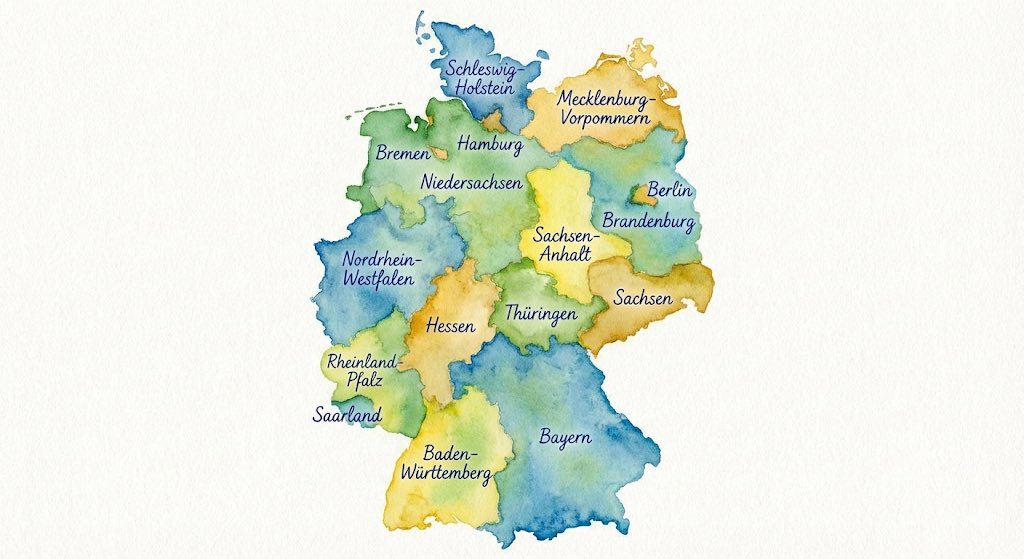
A [product] on a minimalist studio set, [material] surface, soft directional light, realistic commercial photography, clear foreground subject, subtle background texture, no text.
Describe the subject before the style
Start each Qwen Image 2.0 prompt with the main object, person, or scene, then add lighting, camera angle, material, mood, and finish. This keeps the model focused on the image hierarchy.
Choose the ratio before writing layout details
A vertical story, square post, and wide banner need different composition language. Match your prompt to the canvas you select in AISnapEdit.
Use seed for controlled comparisons
When testing small prompt changes, keep the same seed and settings so the comparison is easier to read.
Use references when the source matters
Qwen Image 2.0 image to image is better when a product, subject direction, or composition reference matters. Qwen Image text to image is better for free exploration from a written brief.
These Qwen Image 2.0 example briefs show how to plan product scenes, social assets, and editorial images before spending credits.
Use this for a product launch hero when a marketing team needs a clean commercial image before arranging a real photoshoot.
Premium skincare serum bottle on a soft stone pedestal, translucent amber glass, morning bathroom light, eucalyptus leaves, realistic product advertising photo, clean negative space, no extra text.
Expected output: A polished product-style image with a centered hero subject, natural props, and enough open space for later layout work.
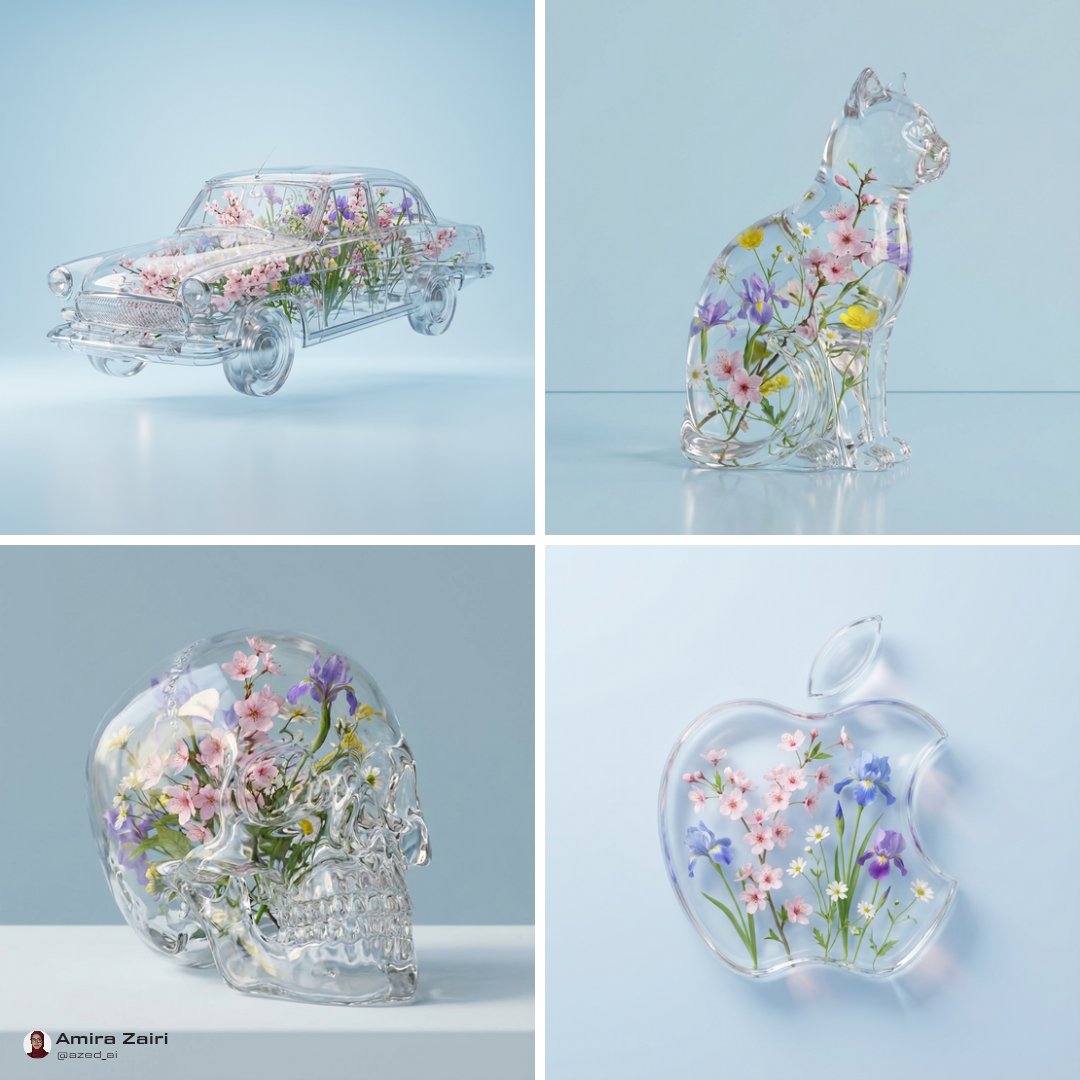
Use Qwen Image 2.0 image to image when a creator has reference material and wants a vertical version that keeps the visual idea while changing mood and framing.
Use the reference as the main subject direction. Create a warm sunset social story version with soft rim light, shallow depth of field, clean background, and a premium lifestyle tone.
Expected output: A vertical campaign variation guided by the uploaded reference, useful for social testing and creative exploration.
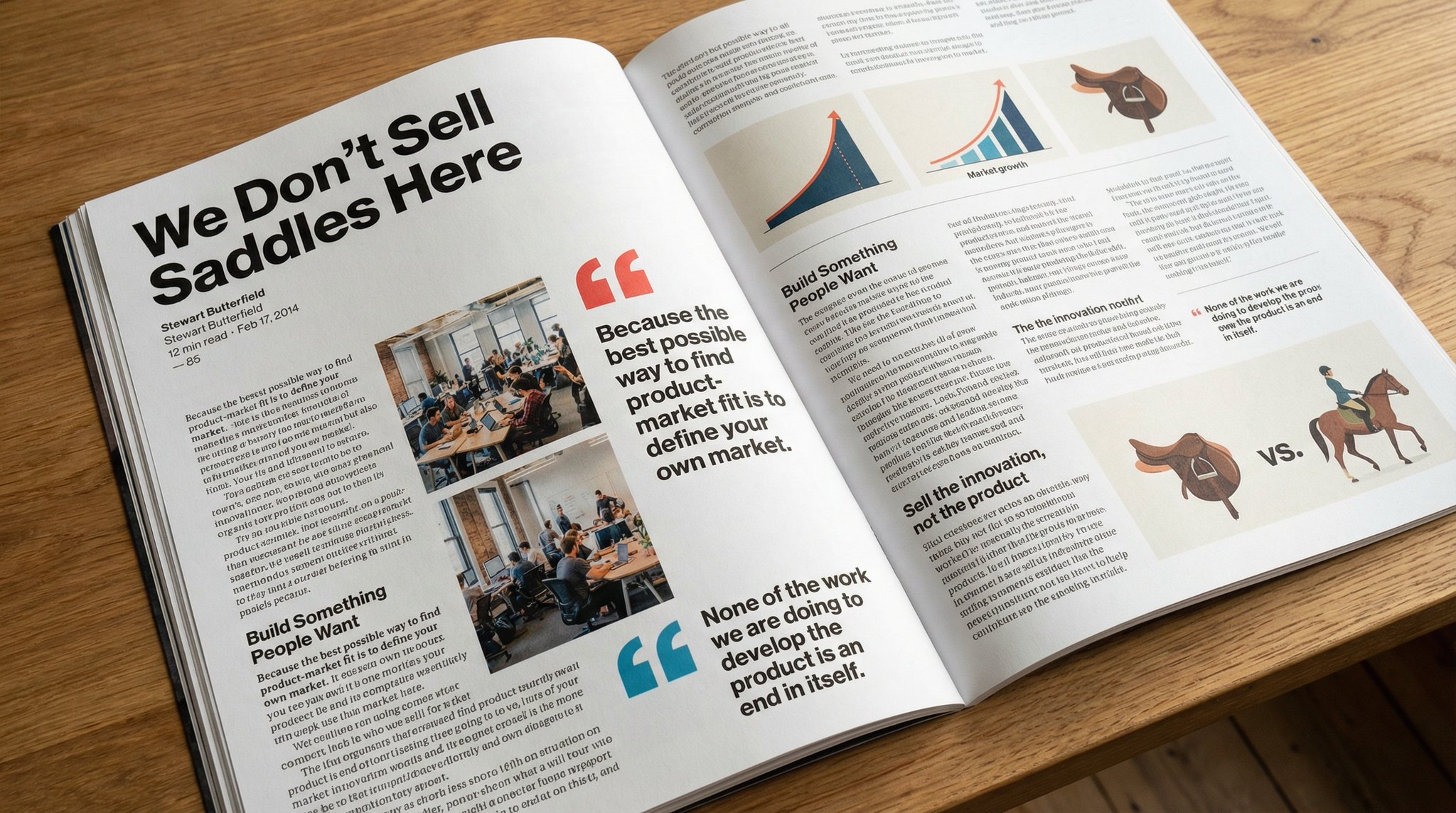
Use this when a blog or newsletter needs a wide cover that communicates an AI productivity theme without using stock photography.
Futuristic creative desk with translucent interface panels, sketchbook, stylus, and soft studio lighting, optimistic editorial cover image, detailed but uncluttered, cinematic 16:9 composition.
Expected output: A wide editorial asset with clear subject hierarchy and room for title treatment outside the generated image.
Compare Qwen Image 2.0 with nearby AISnapEdit models when you need a different prompt-following profile, typography behavior, or image style.
Best for: Qwen Image prompt-based images, reference-guided variations, practical ratios, and predictable 6-credit tests.
Choose when: You want a balanced Qwen Image 2.0 workflow for text to image and image to image.
Best for: A separate AISnapEdit image workflow to compare against Qwen-style results.
Choose when: You want to test another image model before committing to a final direction.
Best for: A different prompt-following profile and GPT Image 2 workflow inside AISnapEdit.
Choose when: Your workflow or team specifically wants to compare GPT Image 2 results.
Best for: Typography-heavy experiments and design-style image directions.
Choose when: Text layout, poster language, or logo-like visual exploration is the main task.
Use these related AISnapEdit workflows to move from a Qwen Image 2.0 guide into generation, reference editing, or model comparison.
Start a text to image workflow and switch between available AISnapEdit image models.
Use uploaded references when you want an existing image to guide the result.
Compare another image model before choosing a production direction.
Compare Qwen Image 2.0 against GPT Image 2 for the same brief.
Try a model page focused on design and text-oriented image use cases.
Review the older Qwen image workflow when you need to compare model generations.
Find answers to common questions about this model
Qwen Image 2.0 is available in AISnapEdit as a Qwen Image generator for text to image creation and reference-guided image to image workflows.
It is the newer Qwen Image workflow in AISnapEdit, with support for both prompt-based text to image generation and image to image. The older Qwen Image page remains available when you want to compare earlier Qwen-style results.
It costs 6 credits per generation for both text to image and image to image.
A strong prompt starts with the subject, then adds composition, lighting, camera angle, material, mood, ratio, and any reference-image intent.
Yes. It is useful when you want to explore a new visual from a written brief, product idea, social campaign, or editorial concept.
Use image to image when an uploaded reference should guide the subject, product direction, composition, or style of the final image.
AISnapEdit accepts up to 3 reference images for image to image, with JPEG, PNG, and WebP input support.
You can use a prompt for poster-style directions, but dense text and exact typography should be reviewed carefully and often finished in a design tool.
PNG is the default output format, and JPEG is also available for both text to image and image to image.
No. Built-in content safety checks stay enabled, and AISnapEdit does not expose them as creative controls.
Use Qwen Image 2.0 for text to image generation and reference-guided image to image at 6 credits per generation.