
Loading page
Use GPT Image 1.5 for prompt-based image drafts and reference-guided edits with the quality controls exposed in AISnapEdit.
Credits
Transparent pricing, pay as you go
Medium
4
credits per Medium image
High
22
credits per High image
GPT Image 1.5 creator guide
Use GPT Image 1.5 when these strengths match the brief before spending credits.
Create image directions from a written prompt and choose the supported aspect ratio before generating.
Upload reference images where the page supports them, then describe the change you want in the prompt.
Choose Medium for lower-credit iterations or High when the draft needs more detail.
Use subject, composition, lighting, and text instructions in one brief instead of relying on unsupported benchmark claims.
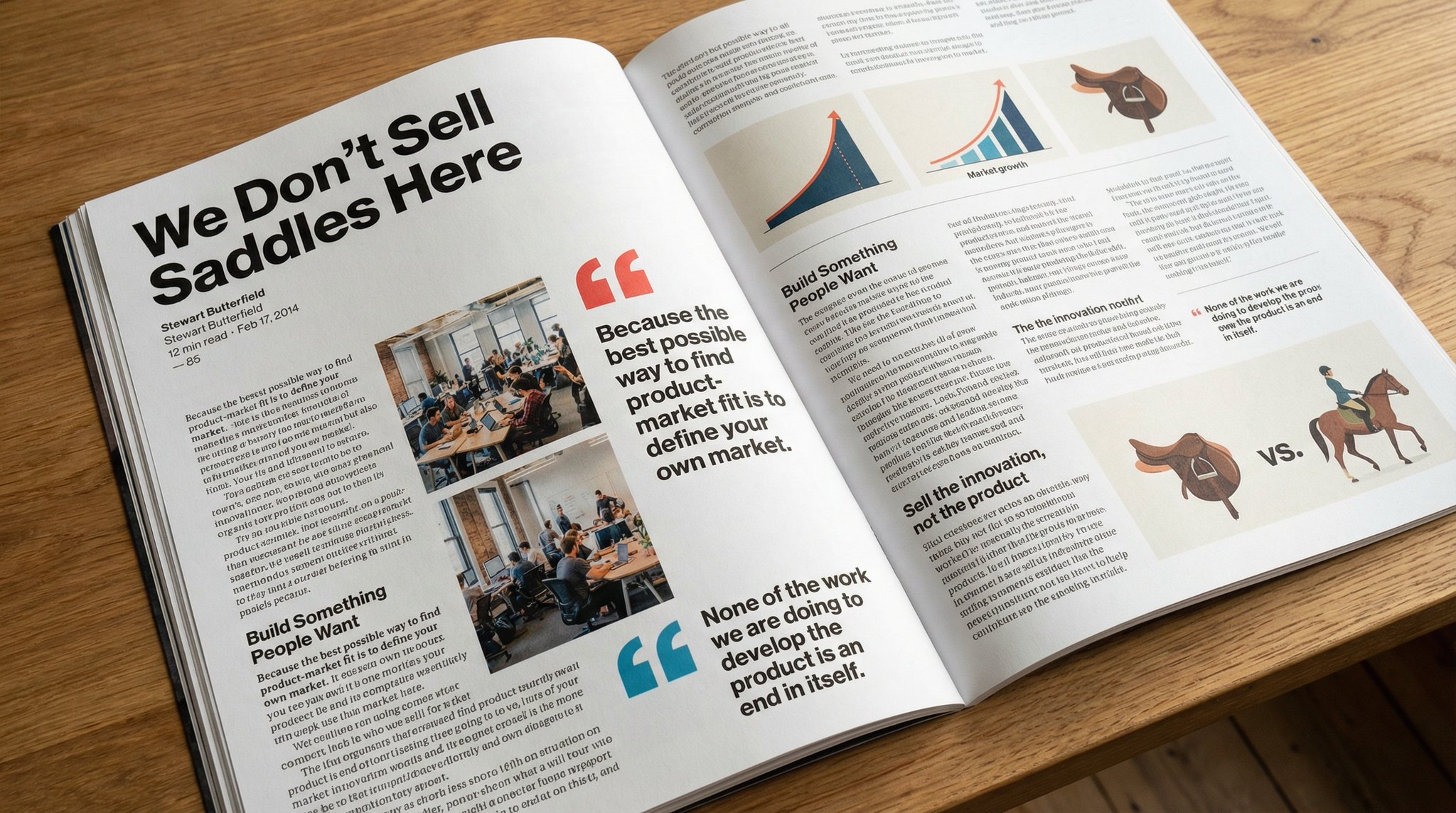
Use GPT Image 1.5 when you want a focused OpenAI image workflow for quick drafts, simple aspect ratios, image to image edits, and clear Medium or High quality choices.
Start with GPT Image 1.5 when you need several prompt directions before deciding which concept deserves a higher-cost or higher-resolution pass.
Use Medium for everyday iteration and High when the composition is close enough to justify a more detailed review image.
The 1:1, 2:3, and 3:2 ratio set covers square posts, portrait assets, landscape previews, product drafts, and thumbnails.
Use image to image when an existing visual should guide style, layout, background, or subject direction while you test a new prompt.
Use these GPT Image 1.5 prompt ideas for fast text to image drafts, reference-guided edits, and Medium-to-High quality comparison runs.
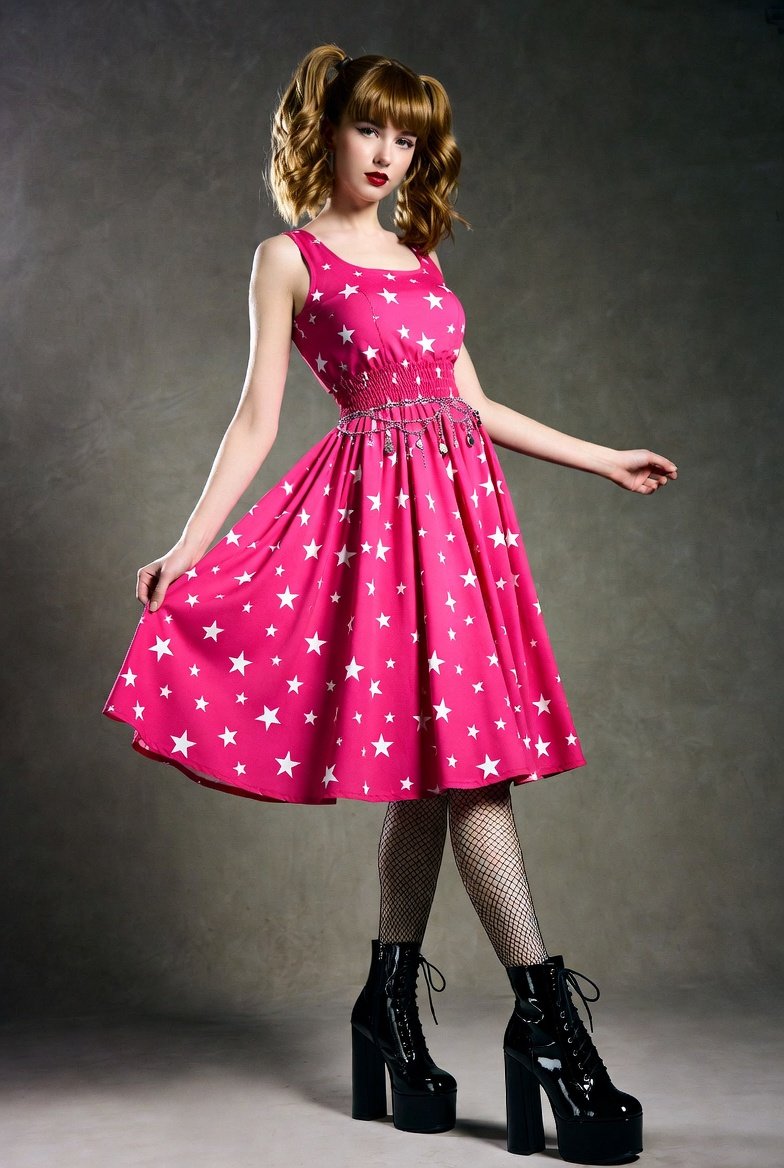
A square product concept for [product], clean studio surface, soft directional light, realistic commercial photography, one clear subject, minimal props, no text.
Start in Medium when exploring
Use Medium when you are testing subject, mood, and composition. Save High for prompts that already have a clear direction.
Move to High for review candidates
High quality is better reserved for the few prompts that survived your draft pass, especially product, portrait, or campaign visuals.
Match the prompt to the ratio
Use 1:1 for square posts and product concepts, 2:3 for portrait or lifestyle assets, and 3:2 for landscape headers and thumbnails.
Use the source image to anchor edits
For image to image, make the source image role explicit: subject, pose, style, color palette, background, or lighting direction.
These GPT Image 1.5 examples show how to plan quick product drafts, reference-guided edits, and text-led creative concepts before spending High quality credits.
Use this when an ecommerce or marketing team needs a fast square product concept before selecting a final art direction.
Minimal square product image of [product] on a clean studio surface, soft side lighting, subtle prop, realistic commercial photography, clear subject, simple background, no extra text.
Expected output: A quick product-style draft with a clear subject and enough polish to compare against other directions.
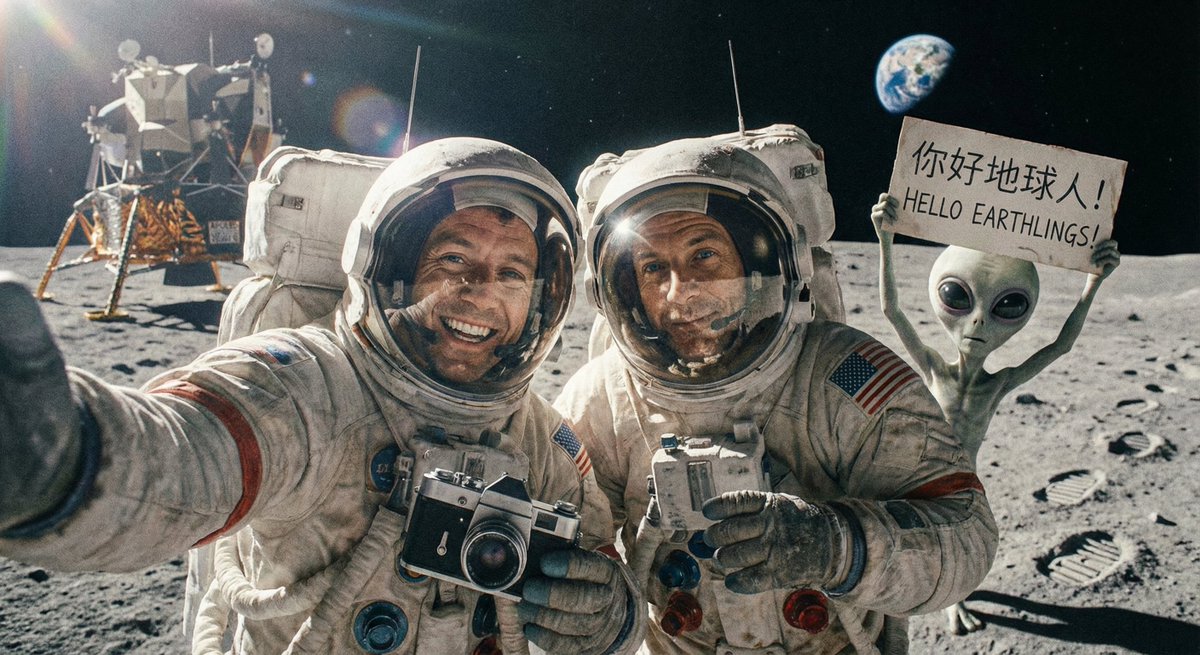
Use GPT Image 1.5 image to image when a source photo needs a new mood, background, or campaign treatment without rebuilding the whole idea.
Use the uploaded image as the source direction. Create a warm portrait campaign version with natural window light, clean background, soft color palette, and a calm lifestyle photography mood.
Expected output: A portrait image variation guided by the source image, useful for fast marketing tests and visual mood exploration.
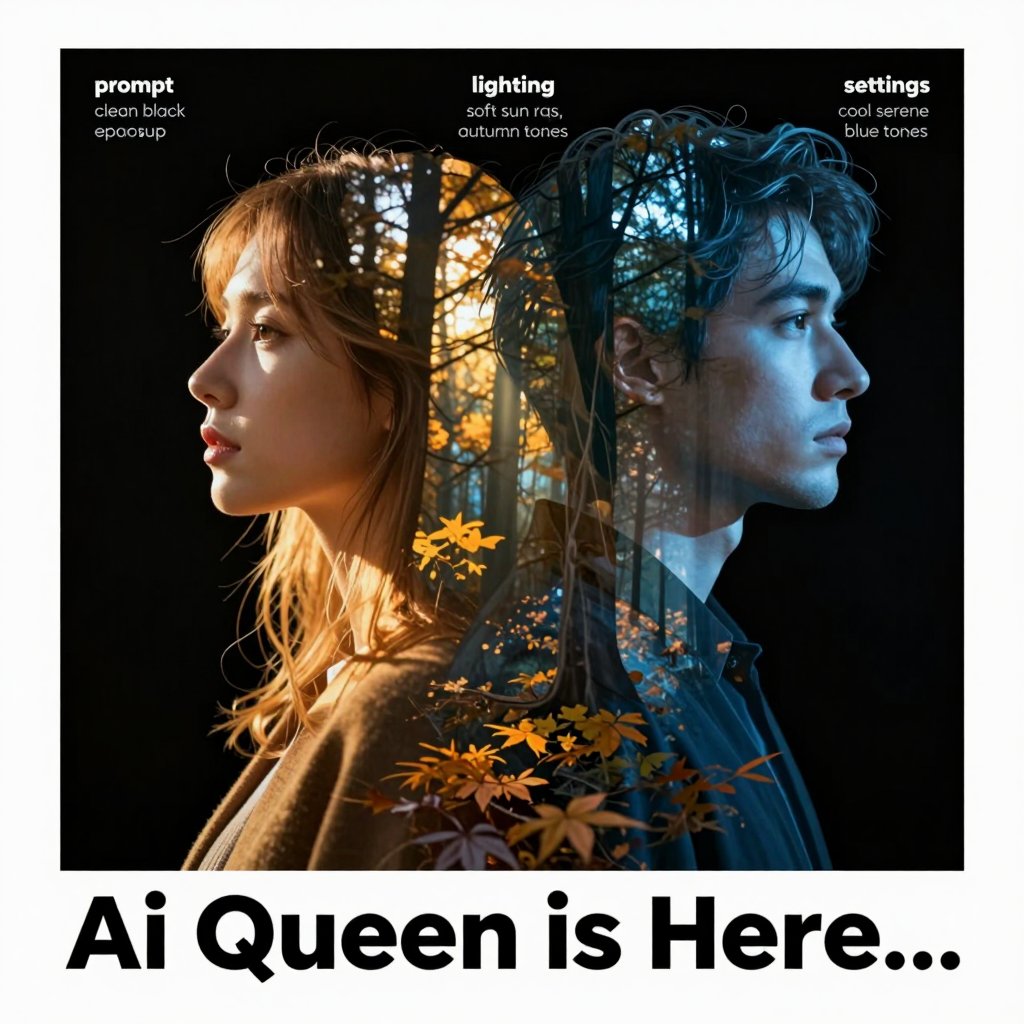
Use this when a newsletter, product update, or blog post needs a landscape graphic with room for exact copy outside the generated image.
Landscape announcement visual for [topic], modern desk scene, one symbolic object in the foreground, soft gradient lighting, clean area for later headline placement, polished editorial style, avoid dense text.
Expected output: A 3:2 editorial-style asset with a readable focal point and open space for final layout work.
Compare GPT Image 1.5 with nearby AISnapEdit models when draft speed, resolution, reference count, text handling, or quality pricing changes the right choice.
Best for: Fast GPT Image drafts, Medium and High quality tests, simple aspect ratios, and reference-guided image to image edits.
Choose when: You want a lighter OpenAI image workflow before committing to a more expensive or higher-resolution pass.
Best for: High-resolution GPT Image output, broader aspect ratios, long prompts, and up to 16 reference images.
Choose when: You need 2K or 4K output, more canvas options, or a larger reference set than GPT Image 1.5.
Best for: Typography-aware poster concepts, design-style images, Magic Prompt experiments, and mask-based edits.
Choose when: Short generated text or mask-based image repair is the main reason for the generation.
Best for: A separate high-detail image workflow for polished campaign, brand, and product concepts.
Choose when: You want to compare a non-OpenAI model profile before choosing a final production direction.
Best for: Balanced text to image and image to image workflows with practical ratios and simple flat pricing.
Choose when: You want another prompt-following profile for the same brief before choosing GPT Image 1.5 or GPT Image 2.
Use these AISnapEdit workflows to move from the GPT Image 1.5 guide into generation, reference editing, or model comparison.
Start a text to image workflow and switch between available AISnapEdit image models.
Use an existing image when the source subject, pose, layout, or mood should guide the edit.
Move a promising GPT Image 1.5 draft into a higher-resolution GPT Image 2 workflow.
Review a typography-aware model page when poster language or mask-based edits matter more.
Compare another polished image model before choosing a final visual direction.
Test the same brief against a Qwen Image workflow for text to image and image to image.
Find answers to common questions about this model
GPT Image 1.5 is an OpenAI image generation workflow available in AISnapEdit for text-to-image and image-to-image use.
Generation time can vary with provider load, prompt complexity, and the selected quality mode, so the page should not promise a fixed time.
You can include text instructions in the prompt, but always review the generated image before using it in a final design.
Yes. Use the image-to-image scene where available, upload the reference image, and describe the intended change.
GPT Image 1.5 supports 1:1, 2:3, and 3:2 in the current AISnapEdit model page.
Medium quality costs 4 credits and High quality costs 22 credits per generation in the current local pricing source.
Use Medium for lower-credit drafts and High when you need a more detailed result for review.
Use GPT Image 2 when you need its larger resolution and reference-image control set. Use GPT Image 1.5 for the simpler aspect-ratio and quality-mode workflow.
Create GPT Image 1.5 drafts with Medium or High quality and review the output before publishing.