
Loading page
Use Qwen Image on AISnapEdit to generate images from text or reshape one reference image with a prompt.
Qwen Image creator guide
Use Qwen Image when these strengths match the brief before spending credits.
Turn a text prompt into a finished image with the text-to-image workflow.
Upload one reference image, then describe how you want it transformed with the image-to-image workflow.
For text-to-image generation, choose square, HD square, portrait, or landscape sizes without memorizing pixel dimensions.
Choose PNG by default or switch to JPEG when you want smaller, share-ready files.
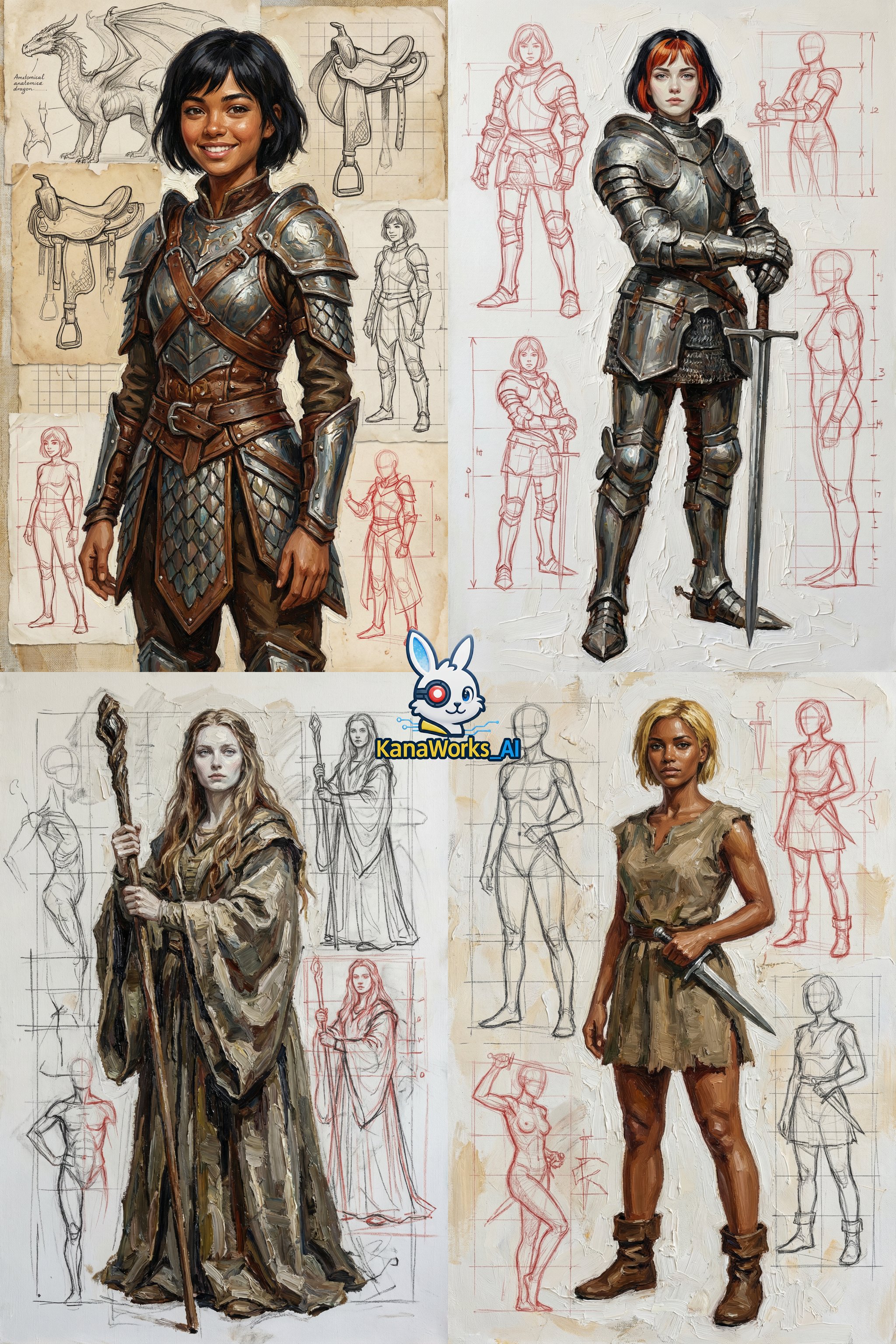
Use Qwen Image on AISnapEdit when you want a lower-friction Qwen workflow with text to image, one-reference image to image, flat 4-credit pricing, and practical preset sizes.
Use Qwen Image text to image for social posts, product drafts, blog covers, and quick visual ideas that do not require multiple references.
Use Qwen Image image to image when one uploaded image should guide the result and strength should control how far the edit moves from the source.
Flat 4-credit pricing for both scenes makes Qwen Image useful for comparing several prompts before moving to a higher-cost model.
Choose square, square HD, portrait, or landscape text-to-image presets for common web and social layouts.
Use these Qwen Image prompt ideas for text to image generation and one-reference image to image edits.

A square product photo of [product] on a [surface], soft realistic shadows, clean background, subtle brand-color props, ecommerce photography, no text.
Choose text or reference first
Use text to image for a new visual from a prompt. Use image to image when one source image should guide the subject, composition, or style.
Match the size preset to the use
Pick square or square HD for feeds and product tests, portrait presets for stories, and landscape presets for covers or banners.
Tune strength for image to image
Use lower strength when the uploaded image should stay close to the source. Use higher strength when you want a more visible transformation.
Use acceleration for rough drafts
Acceleration modes are useful for fast comparisons. For text-heavy or detail-sensitive work, inspect results carefully before treating a faster draft as final.
These Qwen example briefs show how to write practical prompts for text to image and single-reference image to image work.
Use this when a founder or marketer needs a quick product concept before choosing a final scene or model.
A square studio product mockup of a reusable water bottle on a pale stone surface, soft morning light, subtle condensation, clean background, realistic ecommerce photography, no text.
Expected output: A square product-style image with one clear object, simple lighting, and enough whitespace for a feed or catalog test.
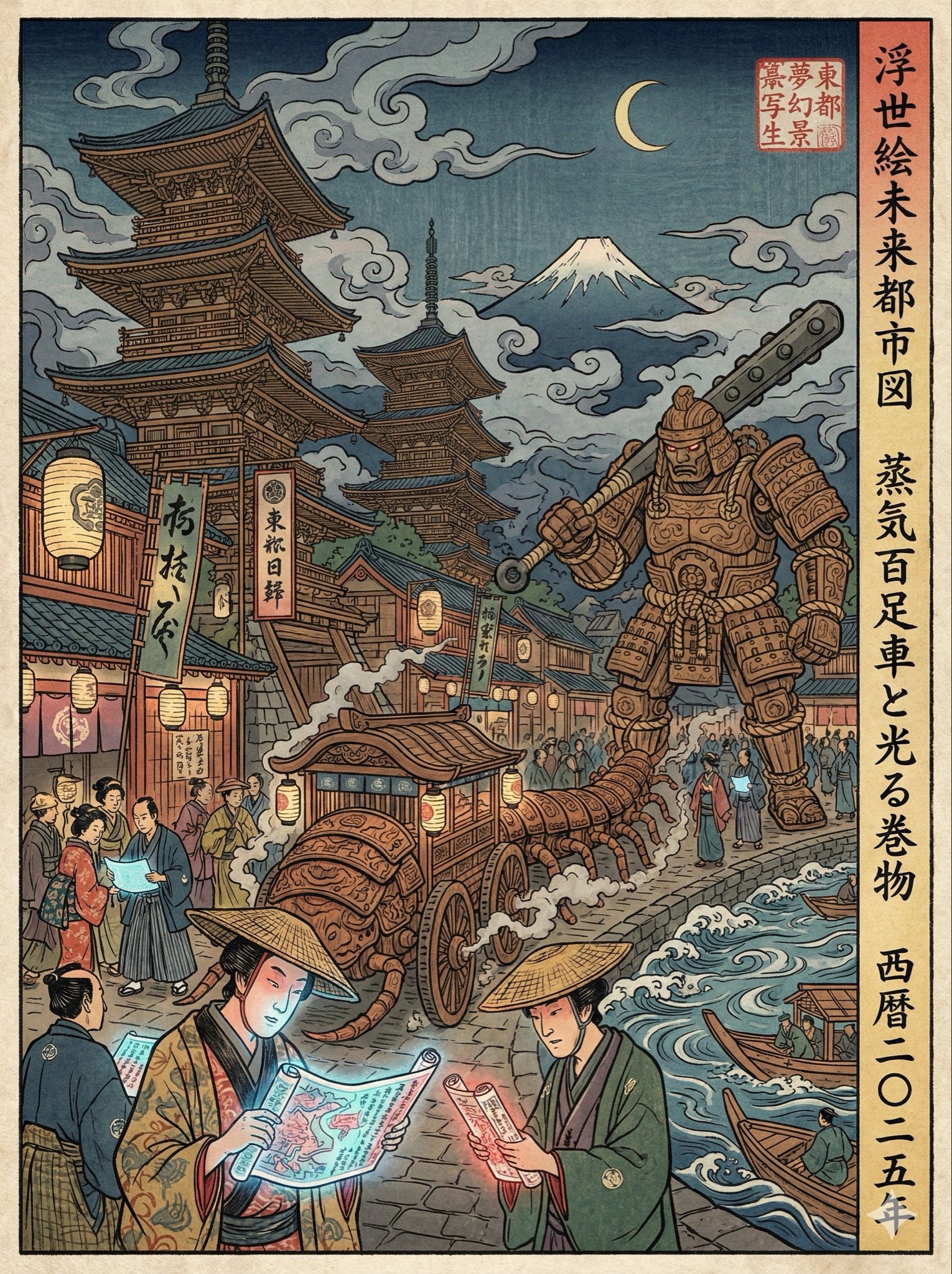
Use image to image when one uploaded source image should stay as the creative anchor while the background or mood changes.
Use the uploaded image as the main subject reference. Keep the subject recognizable, change the background to a bright minimalist studio, improve soft lighting, add subtle shadows, and avoid changing product details.
Expected output: A source-guided image variation that tests a cleaner environment while keeping the uploaded subject as the starting point.
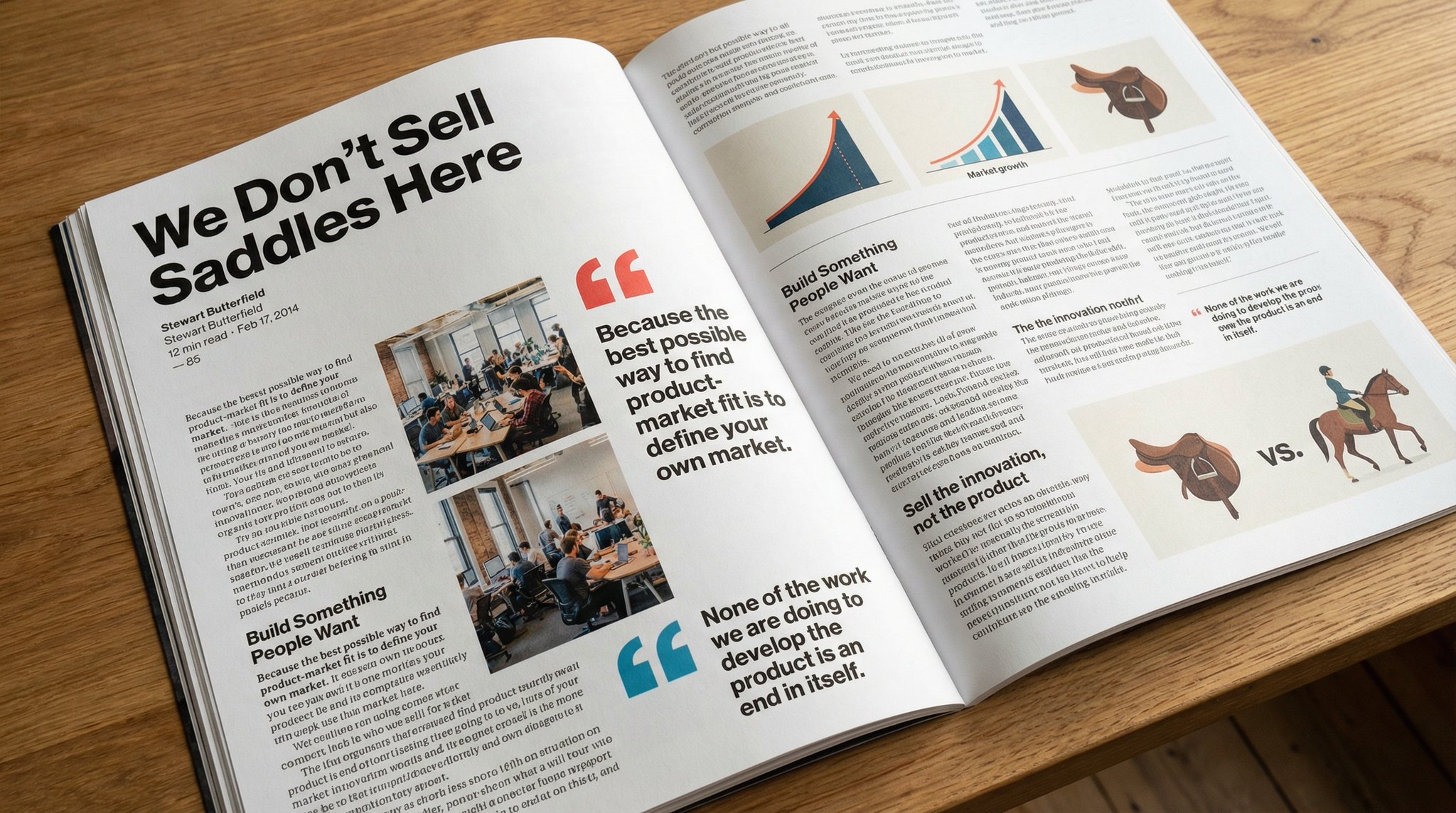
Use this when a post or landing page needs a wide image that communicates a topic without requiring exact text inside the image.
Landscape 16:9 editorial cover image about AI-assisted design, clean desk with sketchbook, color cards, tablet, soft daylight, optimistic creative mood, balanced composition, no readable text.
Expected output: A web-friendly cover image with a clear theme and open areas for real headline text outside the generated image.
Compare Qwen Image with nearby AISnapEdit models when you need more references, a newer Qwen workflow, stronger typography, or a different visual profile.
Best for: Flat 4-credit text to image and one-reference image to image with strength control.
Choose when: You want the older Qwen Image workflow for quick, predictable prompt and reference tests.
Best for: Newer Qwen text to image and image to image with up to 3 references and 6-credit pricing.
Choose when: You need more reference context or want the newer Qwen page.
Best for: Fast text to image drafts and short bilingual visual concepts.
Choose when: You do not need a reference image and want a focused text-to-image workflow.
Best for: Photorealistic product scenes, multi-reference direction, and Pro/Flex variant testing.
Choose when: Reference consistency and high-detail product realism matter more than flat pricing.
Use these AISnapEdit workflows to move from the Qwen Image guide into generation, reference editing, or model comparison.
Start a text to image workflow and switch between available AISnapEdit image models.
Use one uploaded image as the source for Qwen Image image to image edits.
Compare the newer Qwen Image 2.0 guide before choosing an image workflow.
Try a fast text to image page for prompt-only generation.
Compare Qwen Image with a multi-reference Flux workflow for product and campaign assets.
Use a typography-aware model page when poster or text layout is the main task.
Find answers to common questions about this model
Qwen Image is a Qwen image generation model available in AISnapEdit as one model with separate text-to-image and image-to-image scenes.
Use text-to-image to create from a prompt, or image-to-image to guide a new result from one reference image and a prompt.
Qwen Image costs 4 credits per generation for both text-to-image and image-to-image.
Text-to-image supports square, square_hd, portrait_4_3, portrait_16_9, landscape_4_3, and landscape_16_9.
Yes. Use image-to-image, upload one reference image, set strength, and describe the change in the prompt.
No. AISnapEdit keeps the safety checker and NSFW checker enabled server-side rather than exposing unsafe toggles in the UI.
Use Qwen Image for text-to-image generation and single-reference image edits at 4 credits per generation.