
Loading page
Generate Ideogram V3 images from text prompts or use mask-based image to image to fill a selected area of an uploaded image.
Credits
Choose speed or detail before you generate
Turbo
4
credits per Turbo image
Balanced
7
credits per Balanced image
Quality
10
credits per Quality image
Ideogram V3 creator guide
Use Ideogram V3 when these strengths match the brief before spending credits.
Start with a descriptive prompt and generate a new image through the Ideogram V3 text-to-image endpoint.
Upload a source image and a matching mask, then describe the replacement or repair you want in the selected area.
Choose the rendering mode that fits the job: quick drafts, everyday output, or higher-detail final images.
Guide text-to-image output with size presets and Ideogram style types that match the provider API.
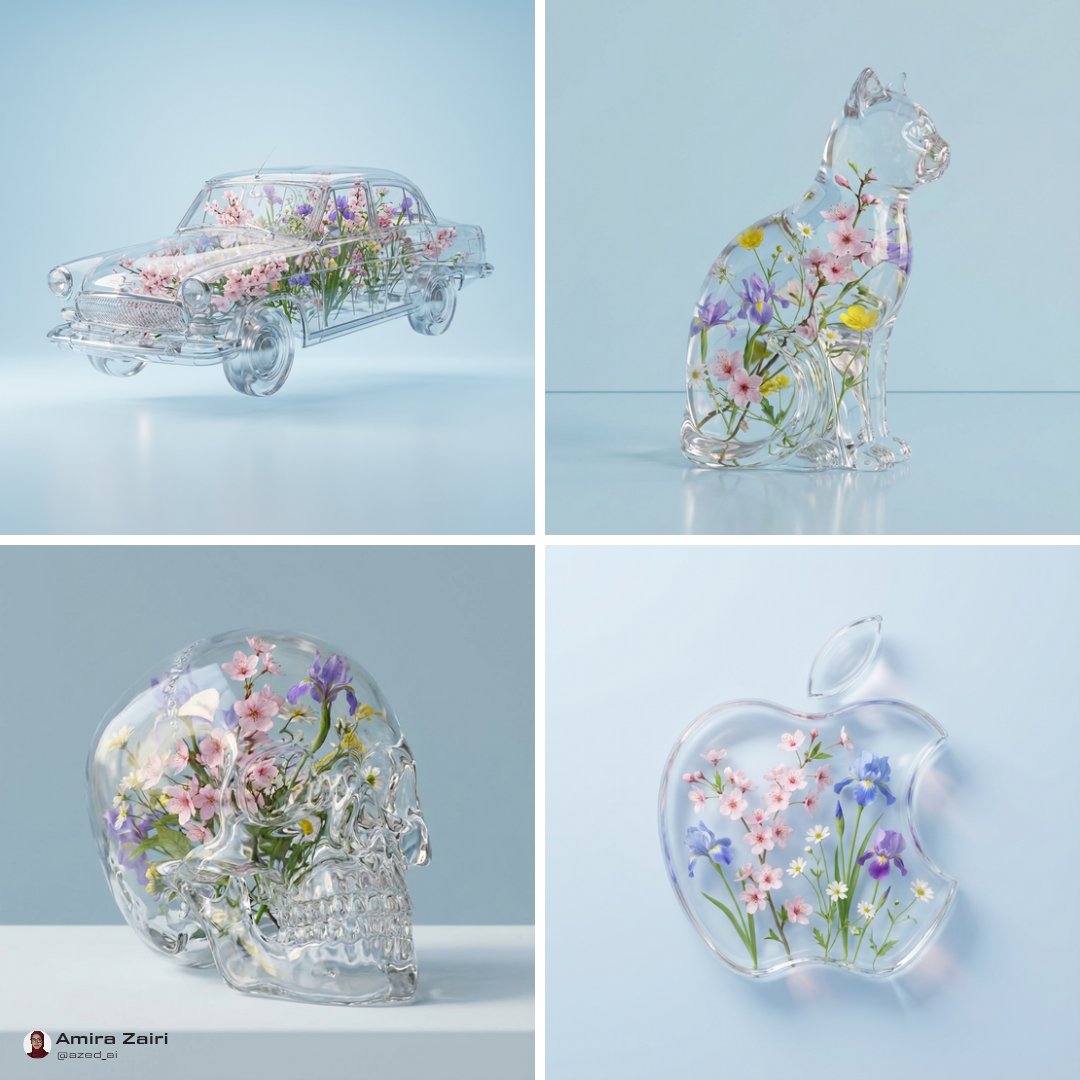
Use Ideogram V3 when you need prompt-first image generation, design-style concepts, mask-guided repairs, and a clear choice between fast drafts and higher-detail output.
Start with Ideogram V3 when a brief includes poster-style wording, logo-like layout exploration, packaging mockups, or a design direction where text placement needs careful review.
Use text to image for campaign boards, editorial covers, product scenes, and creative concepts where size presets, style type, and Magic Prompt can shape the result.
Use image to image when a source image should stay anchored and only a masked area needs a replacement, repair, object swap, or background detail.
Choose Turbo for fast exploration, Balanced for everyday generation, or Quality when the brief needs more detail before review.
Use these Ideogram V3 prompt ideas as starting points for text to image generation and mask-based image to image edits.
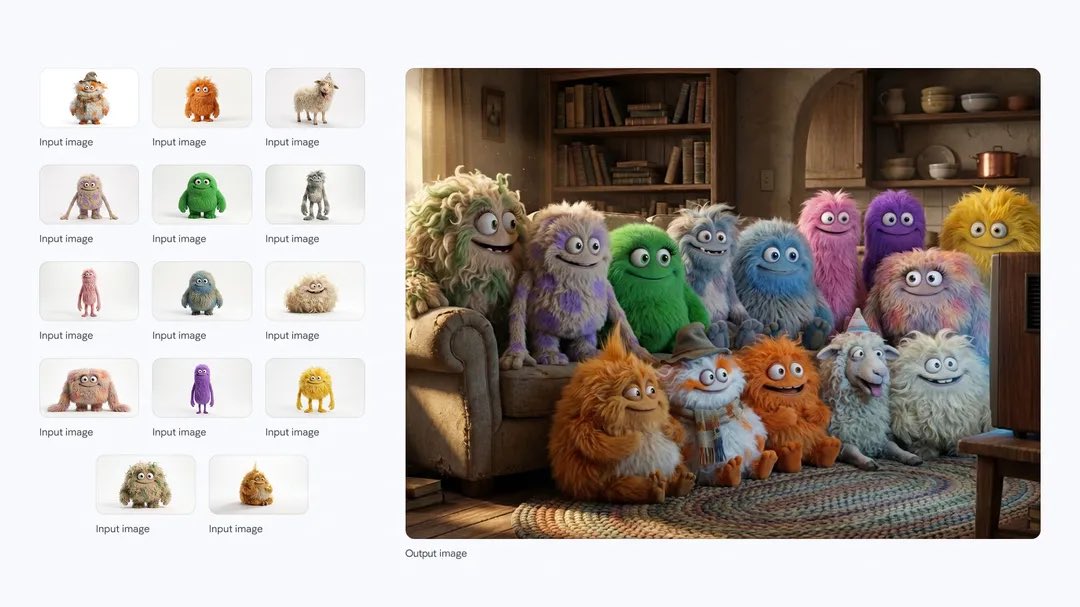
A design poster for [event/topic], short headline area for "[two or three words]", bold central visual metaphor, limited color palette, strong negative space, polished editorial layout, no extra small text.
Choose the workflow first
Use text to image when the whole image should come from a prompt. Use image to image when you have a source image and a same-size mask that marks the area Ideogram V3 should change.
Write the subject before style notes
Start with the main subject, purpose, and layout, then add lighting, material, camera angle, mood, and style type. This keeps the Ideogram V3 prompt focused.
Keep generated text short
For poster or logo-like work, ask for a short word or headline area and review the result carefully. Finish exact long copy, legal text, or small labels in a design tool.
Use Magic Prompt deliberately
Leave Magic Prompt on when the prompt is short and you want Ideogram to add visual detail. Turn it off when exact wording, layout, or product constraints matter more.
These Ideogram V3 examples show how to plan poster concepts, product scenes, and masked edits with settings that match the AISnapEdit generator.
Use this when a brand or event team needs a poster direction with a short headline area and a strong visual system before final design cleanup.
Modern poster for an evening design market, exact headline area for "NIGHT FORMS", bold geometric lighting, premium editorial layout, clean negative space, high-contrast type-led composition, no extra small text.
Expected output: A poster-style image with a clear headline zone, strong lighting, and enough visual hierarchy for a designer to review and refine the wording.
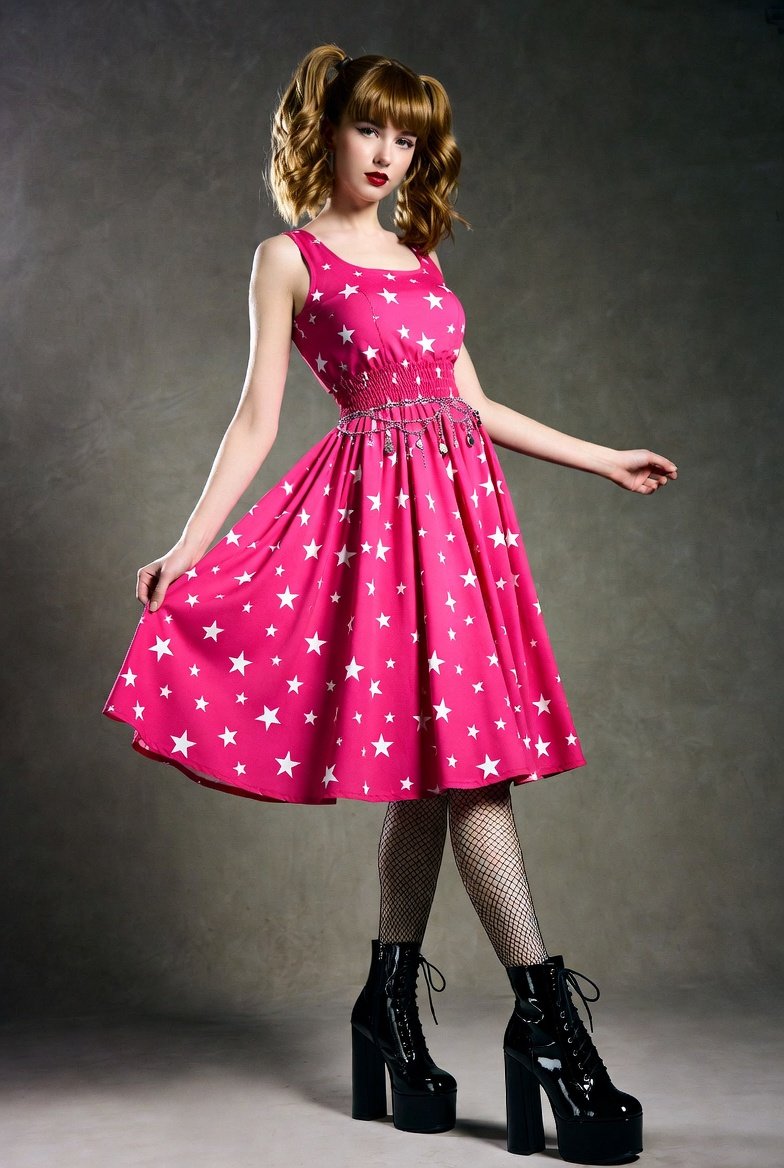
Use image to image when a product photo already exists and only the selected background or prop area should change.
Replace the masked background with a warm studio tabletop scene, soft shadows, subtle ceramic props, realistic commercial photography, keep the product edges clean and unchanged.
Expected output: A refreshed product image where the source subject remains anchored while the masked area gains a cleaner campaign setting.

Use this for a quick social campaign concept that needs a vertical composition, a recognizable hero subject, and later room for channel-specific copy.
Vertical social launch visual for a boutique sparkling water brand, condensation on glass bottle, citrus reflection, upbeat summer color palette, realistic advertising photo, clean top area for later copy, no readable text.
Expected output: A portrait campaign image with one main subject, clear mood, and open space for platform-specific text outside the generated image.
Compare Ideogram V3 with nearby AISnapEdit image models when typography, mask-based edits, resolution, reference use, or prompt-following behavior matters.
Best for: Design-style generation, poster concepts, Magic Prompt experiments, and mask-based image to image edits.
Choose when: You want an Ideogram V3 generator with text to image, same-size mask editing, and mode-based pricing.
Best for: A separate high-detail image workflow to compare for brand, poster, or polished visual briefs.
Choose when: You want another model profile before committing to a final production direction.
Best for: A different prompt-following profile and GPT Image 2 workflow inside AISnapEdit.
Choose when: Your team wants to compare the same prompt against an OpenAI image model.
Best for: Prompt-based images, reference-guided variations, practical ratios, and predictable flat pricing.
Choose when: You want a balanced text to image and image to image workflow with simple 6-credit pricing.
Use these AISnapEdit workflows to move from the Ideogram V3 guide into generation, mask-based editing, or model comparison.
Start a text to image workflow and switch between available AISnapEdit image models.
Use an existing image as the source when the visual direction should stay anchored.
Compare another image model for polished design, brand, and campaign concepts.
Test the same prompt against GPT Image 2 before choosing a final model.
Compare Ideogram V3 with a Qwen Image workflow for text to image and image to image.
Review another image model page when your prompt needs a different visual profile.
Find answers to common questions about this model
You can generate new images from text prompts or edit a masked area of an existing image. AISnapEdit exposes the verified Text-to-Image and Image-to-Image workflows for this model.
Text to image uses text-to-image workflow. Image to image is the product workflow for image-to-image workflow, where a source image and matching mask guide the edited region.
Upload the source image, upload a mask with the same dimensions, and write a prompt for what should appear in the masked region. The Image-to-Image workflow uses the source image and mask together.
Use JPEG, PNG, or WebP files up to 10MB. The mask should match the source image dimensions so the selected area lines up correctly.
You can choose the rendering mode, image size, style type, and Magic Prompt setting. The text-to-image workflow supports Square, Square HD, portrait, and landscape presets.
The cost depends on rendering mode: Turbo costs 4 credits, Balanced costs 7 credits, and Quality costs 10 credits per generation.
No. This AISnapEdit model page supports Text-to-Image and Image-to-Image only. Use the visible workflow tabs as the supported options.
Start with the main subject and intended layout, then add lighting, material, camera angle, mood, style type, and any short wording you want reviewed in the generated image.
Use Magic Prompt when a short prompt needs more visual detail. Turn it off when you need tighter control over wording, layout, product details, or a mask-based edit.
Use Turbo for quick drafts, Balanced for normal iterations, and Quality when the composition is close enough that extra detail is worth the higher credit cost.
No. AISnapEdit keeps the provider safety checker enabled and does not expose a safety toggle.
Use prompt generation or masked Image-to-Image in the AISnapEdit image workflow.